
Set up your family profile and add your children
Add your children, photos, how your family learns and what you can offer, so hosts and families nearby know who you are.
A complete profile makes it easier to book, to be approved by hosts, and to find families like yours.
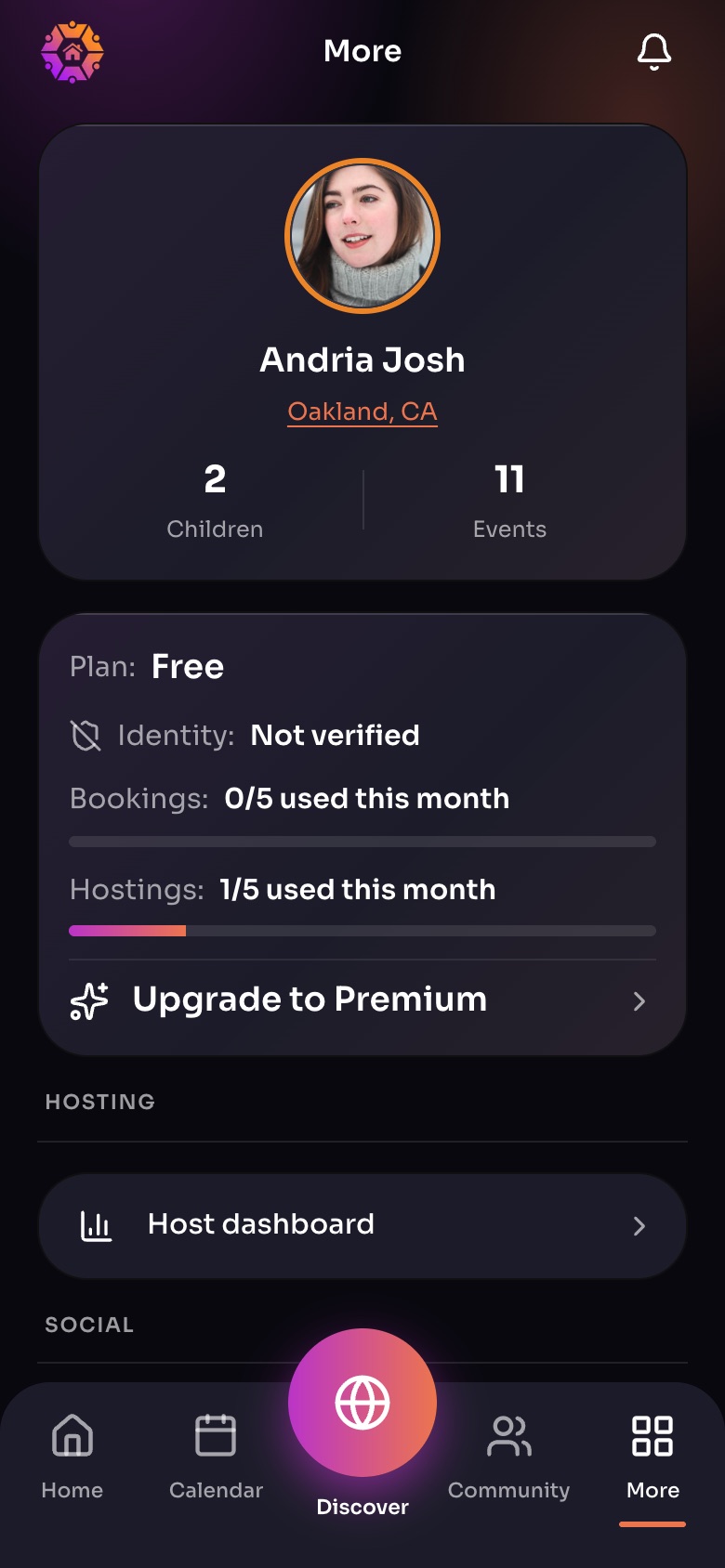
The More tab
- Your profileTap to see or edit your family profile.
- Your planFree or Premium, and how much of this month you have used.
- Upgrade to Premium
- Host dashboard
Sample family shown. Your screen shows your own name, Experiences and groups.
Finish your profile
- Open More and tap your profile card, or tap Build my profile.
- Tell us about your family: how many children, their ages, where you are based and how you school.
- Choose how your family learns and what would help most right now.
- Pick interests: what you can offer, and what you are exploring.
- Add a profile photo and a cover photo, or pick one of ours for now.
- Choose who can see your profile: Public, Private or Secret. See Who can see your profile.
Tip: Not sure what to write in "About your family"? Let AI draft it from your answers, then edit it and tap Add this to my profile.
Add a child
- Open My Profile and choose to add a child.
- Enter their name and birthdate. Their age is worked out for you.
- Add allergies and special notes if hosts should know them. Gender is optional, with Prefer not to say available.
Children's names and ages are only ever shown to you and to friends you accept. See How we protect your children's information.
Did this answer your question?
Still need help?
Send the team a request and a person will answer, usually within two working days.