
Finding your way around the app
What lives on the Home, Calendar, Discover, Community and More tabs, on iPhone and on the web.
WorldSchool has five tabs along the bottom, the same on iPhone and the web.
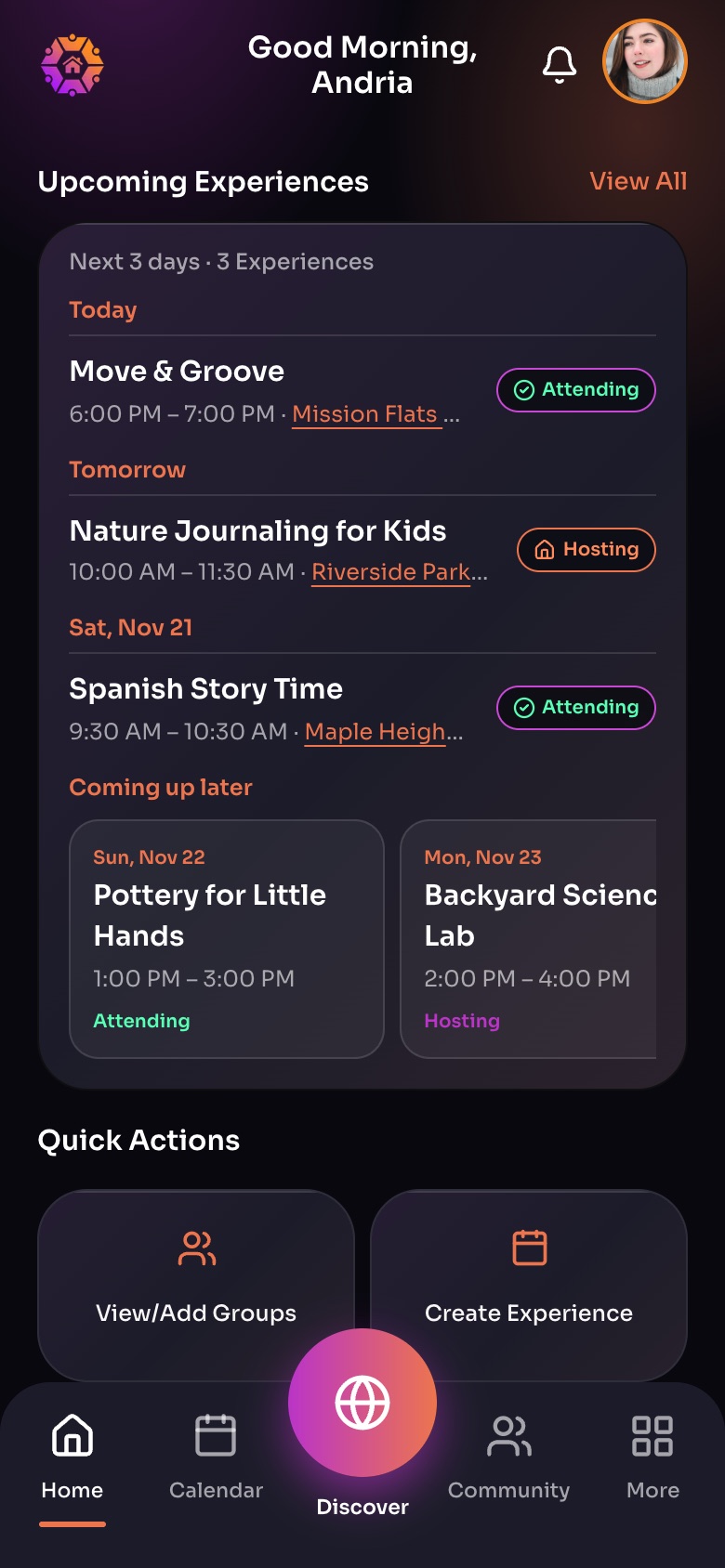
The Home tab, with the five tabs along the bottom
- Upcoming ExperiencesWhat you are booked on or hosting in the next few days. View All opens the full list.
- Quick ActionsShortcuts: groups, Create Experience, Explore Nearby, Interest List.
- Home
- CalendarEverything you booked and everything you host.
- DiscoverThe big button: the map and list of what is near you.
- CommunityGroups, discussion hubs and the Resource Library.
- MoreYour profile, plan, settings, invites and Help & feedback.
Sample family shown. Your screen shows your own name, Experiences and groups.
Home
Your upcoming Experiences, Quick Actions (Create Experience, Explore Nearby, Interest List, View/Add Groups), your inbox, your family overview (tap a child to open their learning hub), your groups, friends and suggestions.
Calendar
Everything you have booked and everything you host. Switch between My Hostings and My Bookings, and between month and week views. Add an Experience or sync with your own calendar here.
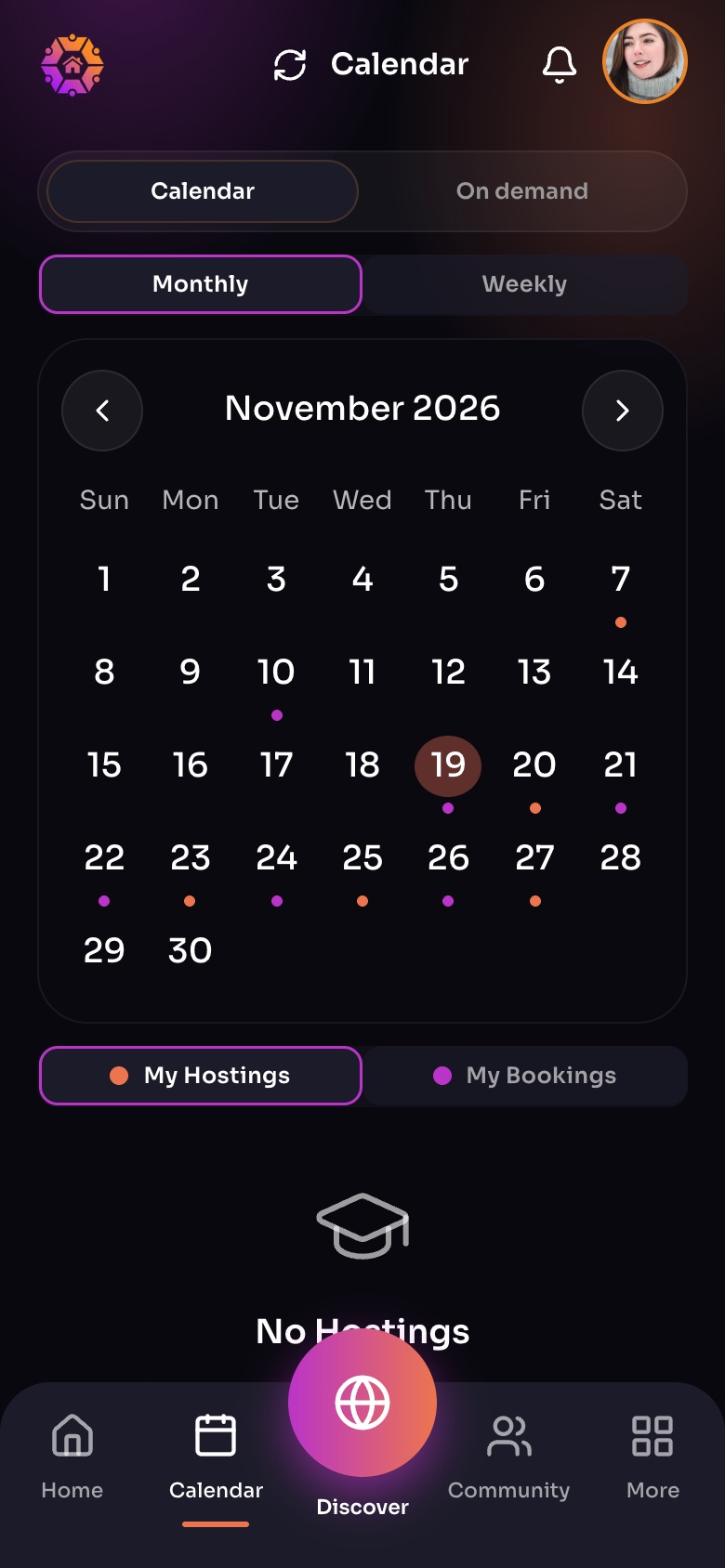
The Calendar tab
- SyncAdd WorldSchool to your phone's or computer's own calendar.
- Monthly / WeeklySwitch between the month and week views.
- My Hostings / My BookingsDots show days you host (orange) and days you are booked (purple).
Sample family shown. Your screen shows your own name, Experiences and groups.
Discover
The big button in the middle. A map and list of Experiences, hosts and groups near you or online. On iPhone the map fills the screen, so the tabs hide until you leave it.
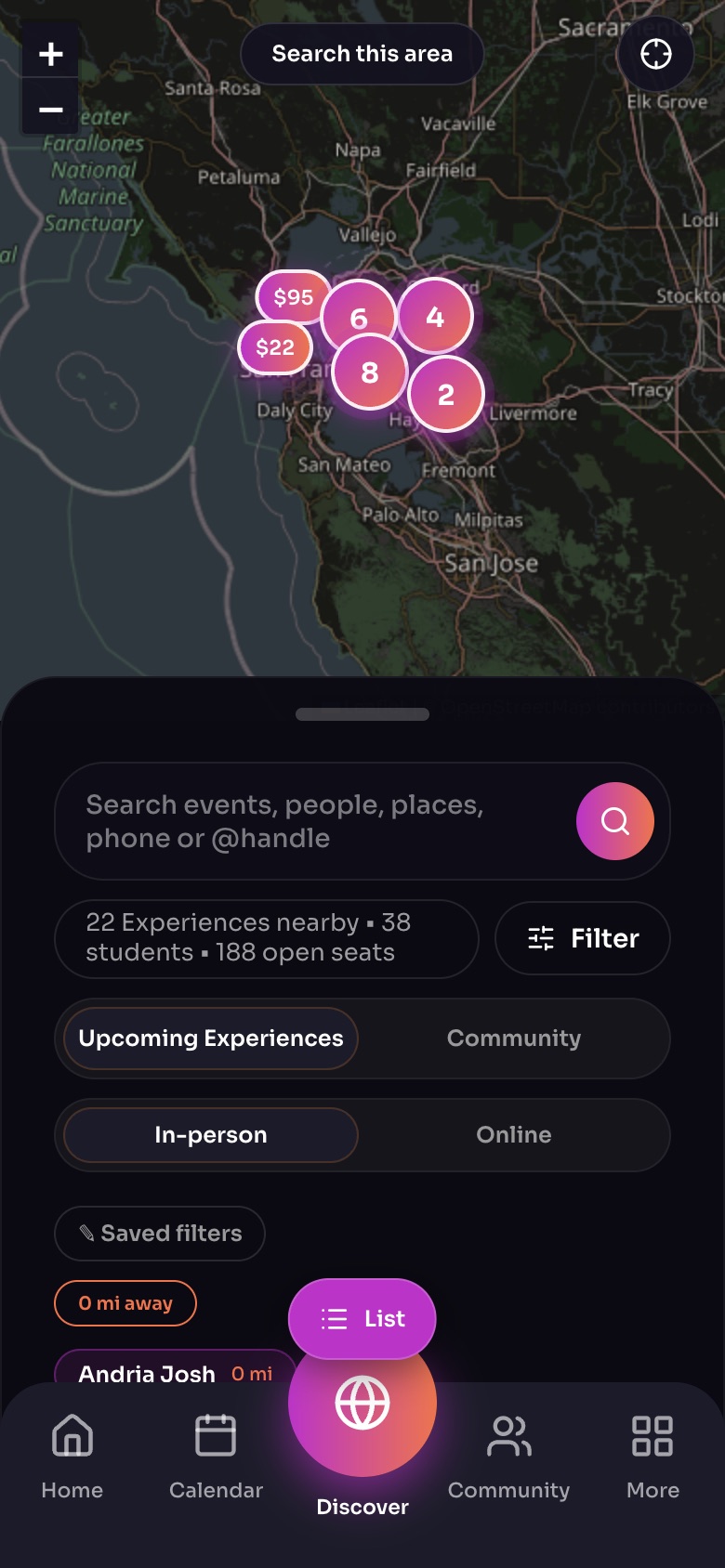
Discover: the map, with search and filters underneath
- Search this areaMove the map, then tap this to look there.
- SearchEvents, people, places, a phone number or an @handle.
- FilterType, age, price, format, day and time.
- In-person / Online
- ListSwitch to the list of cards, nearest first.
Sample family shown. Your screen shows your own name, Experiences and groups.
Community
Your groups, suggested groups, the Discussion Hubs (Parent Lounge, Local Connections, Student Zone, Faith & Philosophy, Resource Exchange) and the Resource Library.
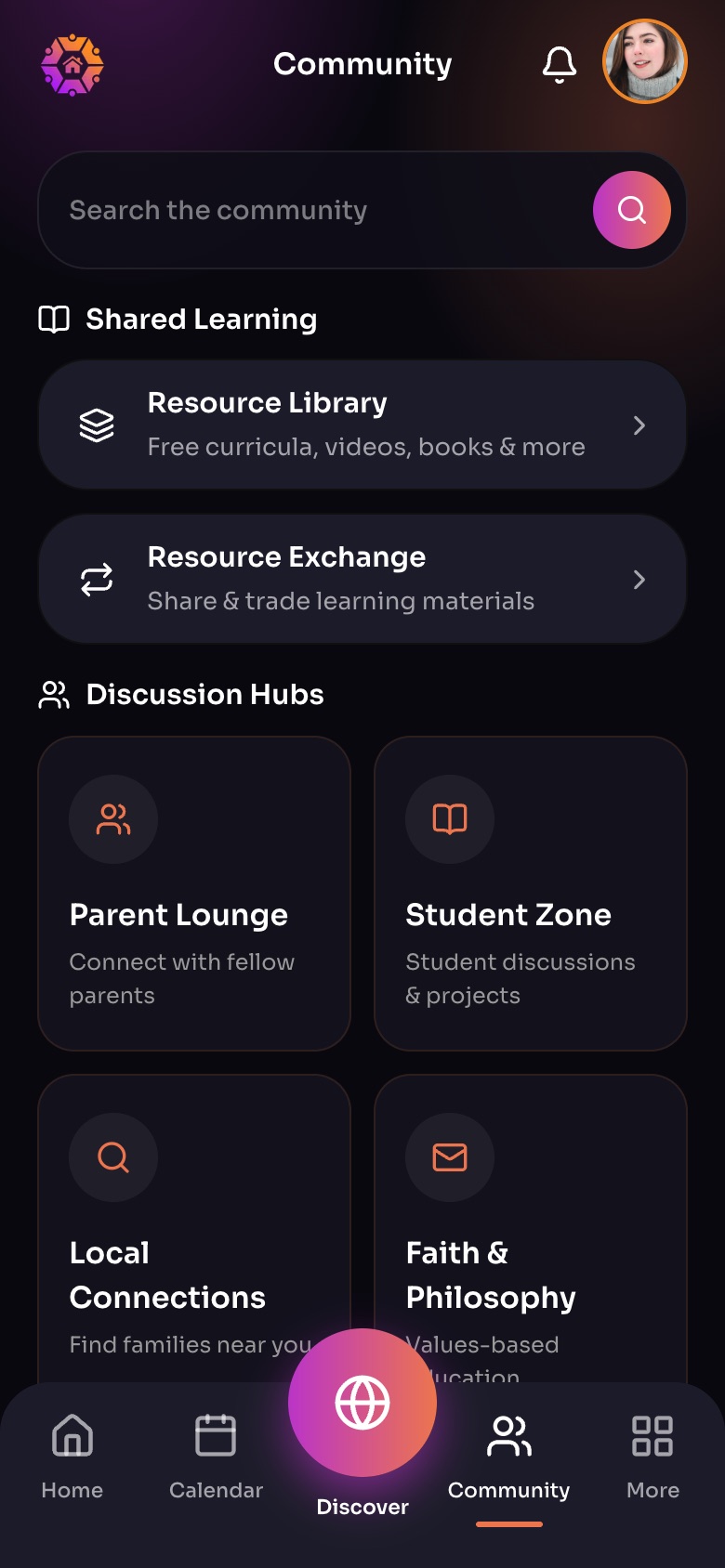
The Community tab
- Resource LibraryFree curricula, videos, books and more.
- Resource Exchange
- Discussion HubsTopic feeds for parents, students and local families.
Sample family shown. Your screen shows your own name, Experiences and groups.
More
Your profile, Premium, inbox, friends, invites, bookings and hostings, payments, waitlists, reviews, groups, the Resource Library, Help & feedback and Settings.
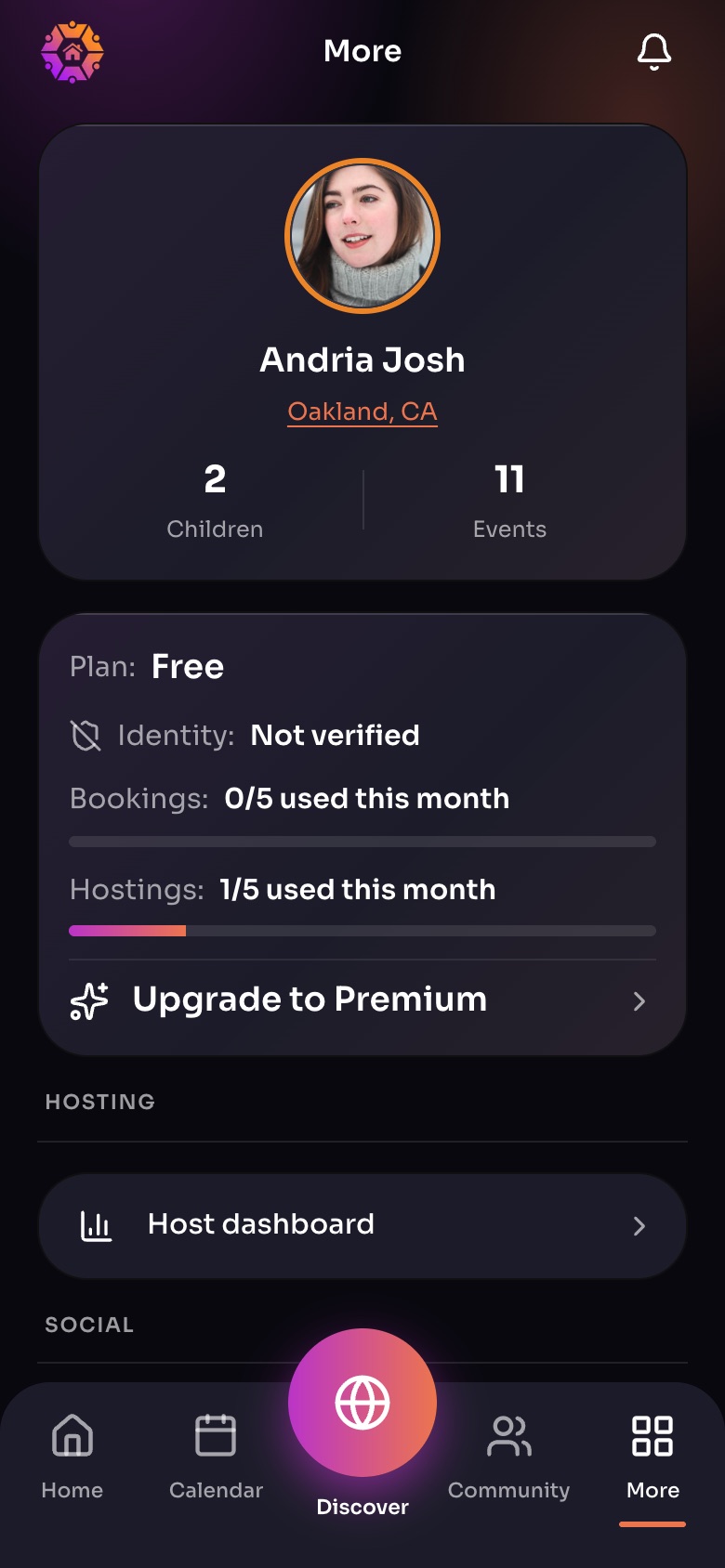
The More tab
- Your profileTap to see or edit your family profile.
- Your planFree or Premium, and how much of this month you have used.
- Upgrade to Premium
- Host dashboard
Sample family shown. Your screen shows your own name, Experiences and groups.
Note: On a computer, the web app also shows a Host dashboard link in the side rail if you host.
Still need help?
Send the team a request and a person will answer, usually within two working days.