
Find Experiences near you with Discover
Use the map, the list, "Search this area" and search to find Experiences, hosts and groups near you or online.
Discover is the big button in the middle of the tab bar.
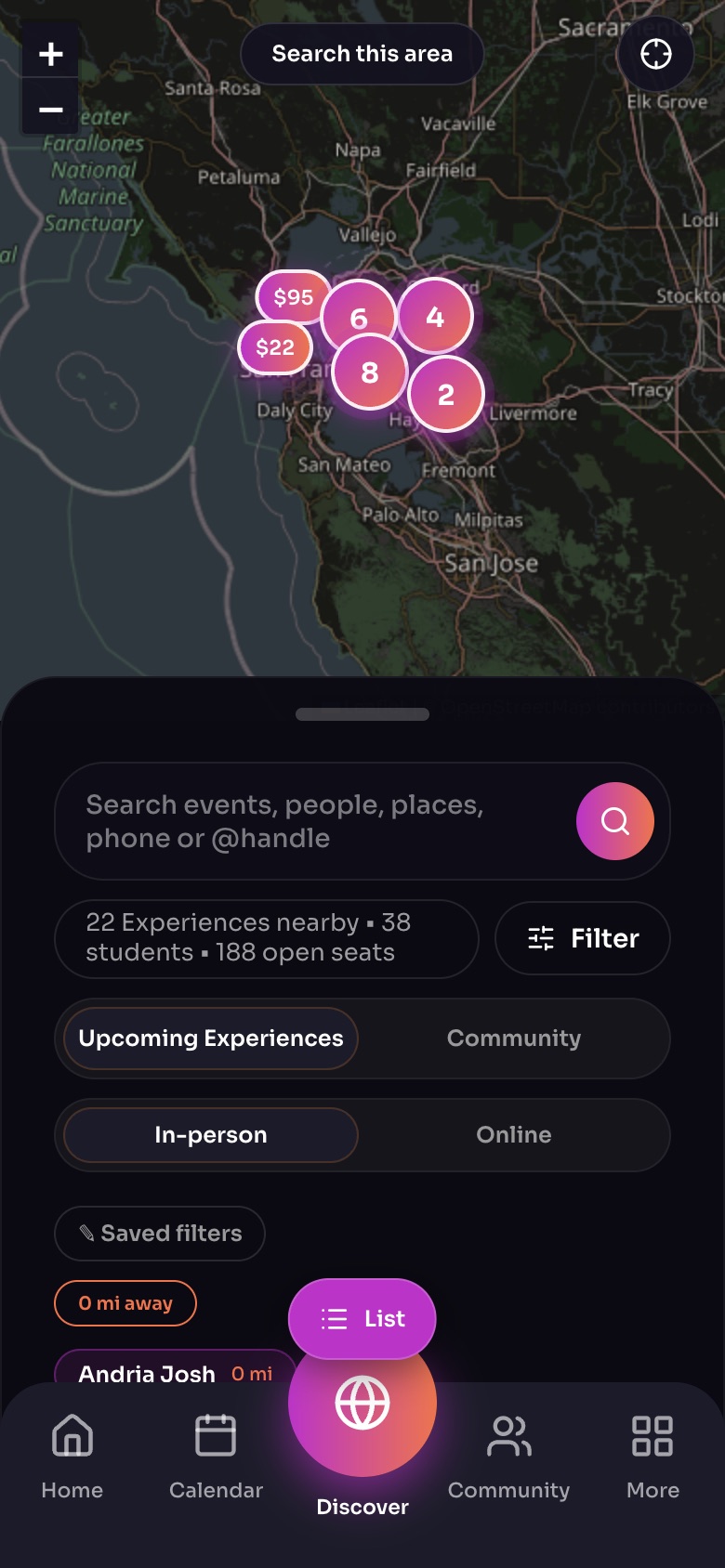
Discover: the map, with search and filters underneath
- Search this areaMove the map, then tap this to look there.
- SearchEvents, people, places, a phone number or an @handle.
- FilterType, age, price, format, day and time.
- In-person / Online
- ListSwitch to the list of cards, nearest first.
Sample family shown. Your screen shows your own name, Experiences and groups.
Experiences or Community
At the top, choose Experiences to see what is happening, or Community to find Hosts and Groups. On Hosts you can narrow by your children's ages.
Use the map
- Numbered bubbles show how many things are in a place. Zoom in and they split apart; tap one to zoom straight to it.
- Move the map, then tap Search this area to load what is in view. The map never jumps away from where you put it.
- Tap Use my location, or set your home location, to start near you.
Switch to a list
Tap the floating Map / List switch to see everything in the current area as a list, then switch back to the map any time.
Search
Type an Experience, a person, a place or a zip code in the search box. On the web you can also search by phone number. Start with @ to search people and groups by their @handle only.
Tip: In-person results follow the map area. Online Experiences are shown wherever you are.
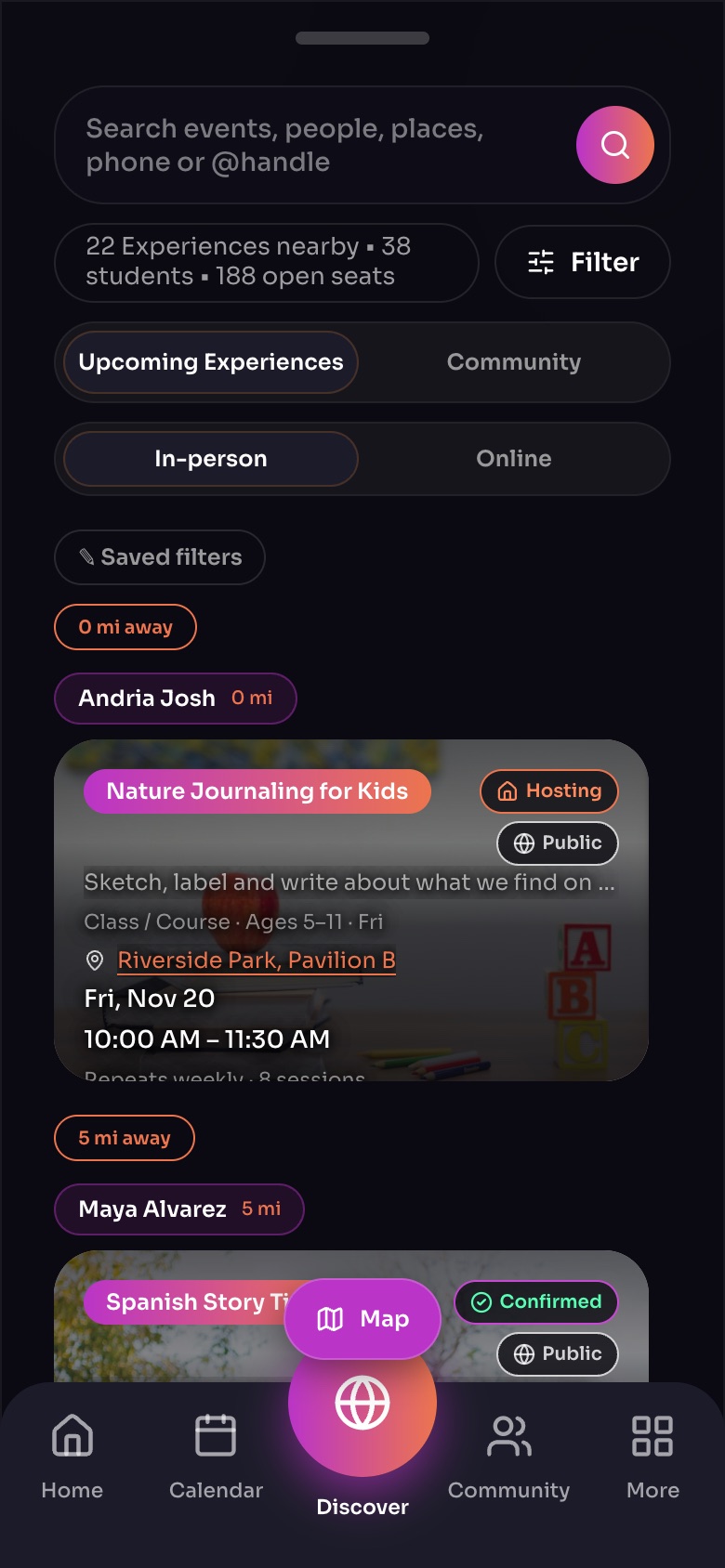
Discover as a list, nearest first
- Saved filtersFilters you saved, one tap away.
- DistanceHow far each host is from you.
- An Experience cardTap it to see the details and book.
- MapBack to the map.
Sample family shown. Your screen shows your own name, Experiences and groups.
Still need help?
Send the team a request and a person will answer, usually within two working days.