
Use your Calendar and sync it with Apple or Google Calendar
See your bookings and hostings in one calendar, and add them to the calendar you already use.
Your calendar
The Calendar tab shows everything you have booked and everything you host. Switch between My Hostings and My Bookings, and between month and week. View All Upcoming lists what is next.
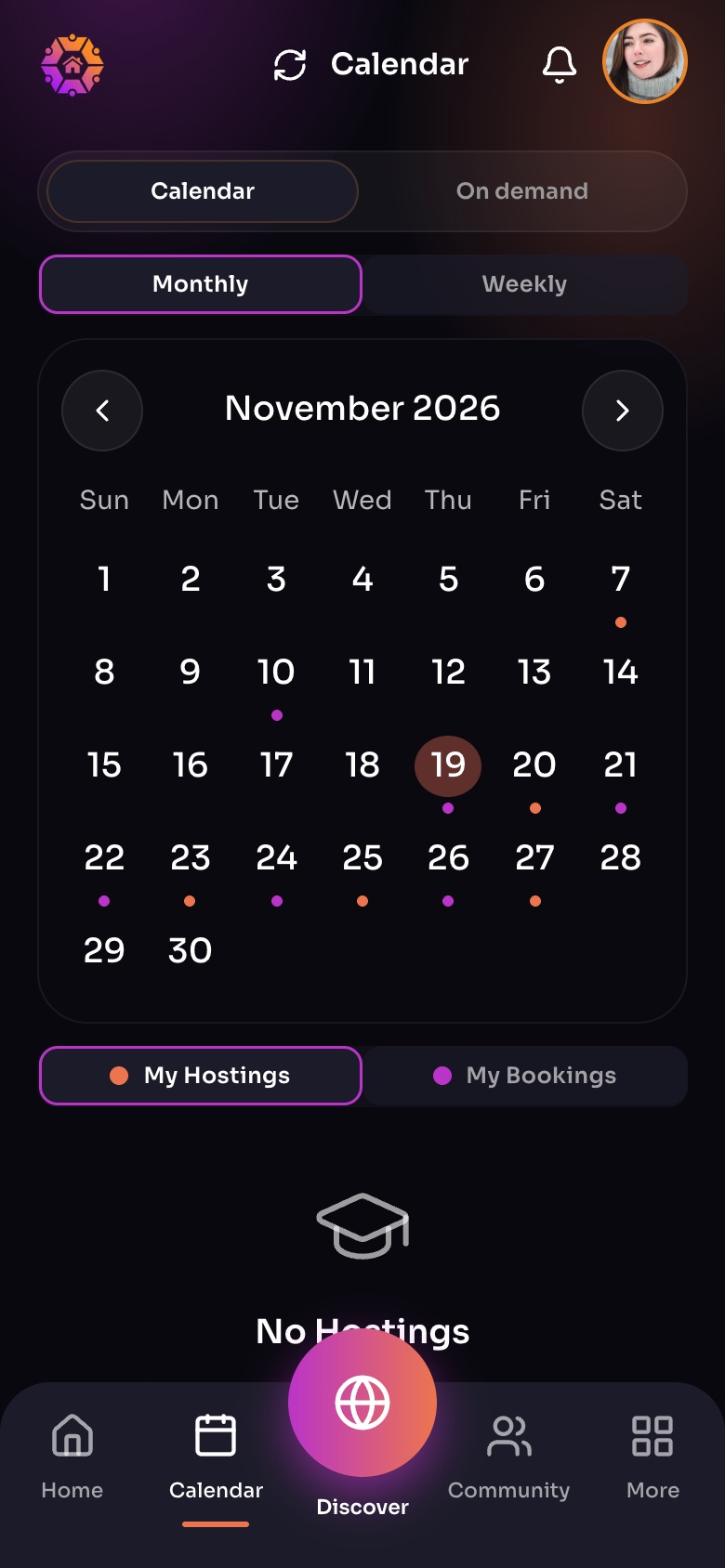
The Calendar tab
- SyncAdd WorldSchool to your phone's or computer's own calendar.
- Monthly / WeeklySwitch between the month and week views.
- My Hostings / My BookingsDots show days you host (orange) and days you are booked (purple).
Sample family shown. Your screen shows your own name, Experiences and groups.
Sync with your own calendar
- In Calendar, open Sync with your calendar.
- On iPhone or a Mac, tap Add to Apple Calendar.
- For Google or another calendar, tap Copy link for Google or another calendar. In Google Calendar, go to Settings, Add calendar, From URL, and paste the link.
New bookings and changes appear in your calendar on their own. Google can take a few hours to refresh.
Important: Your calendar link is private to you. If you shared it by mistake, tap Create a new link; the old one stops working.
Did this answer your question?
Still need help?
Send the team a request and a person will answer, usually within two working days.