
Create a group or co-op
Set up a group for your co-op, microschool, club or business: name, type, privacy, photos, rules and join questions.
Groups bring families together around a co-op, a class, a neighborhood, a faith community or a business.
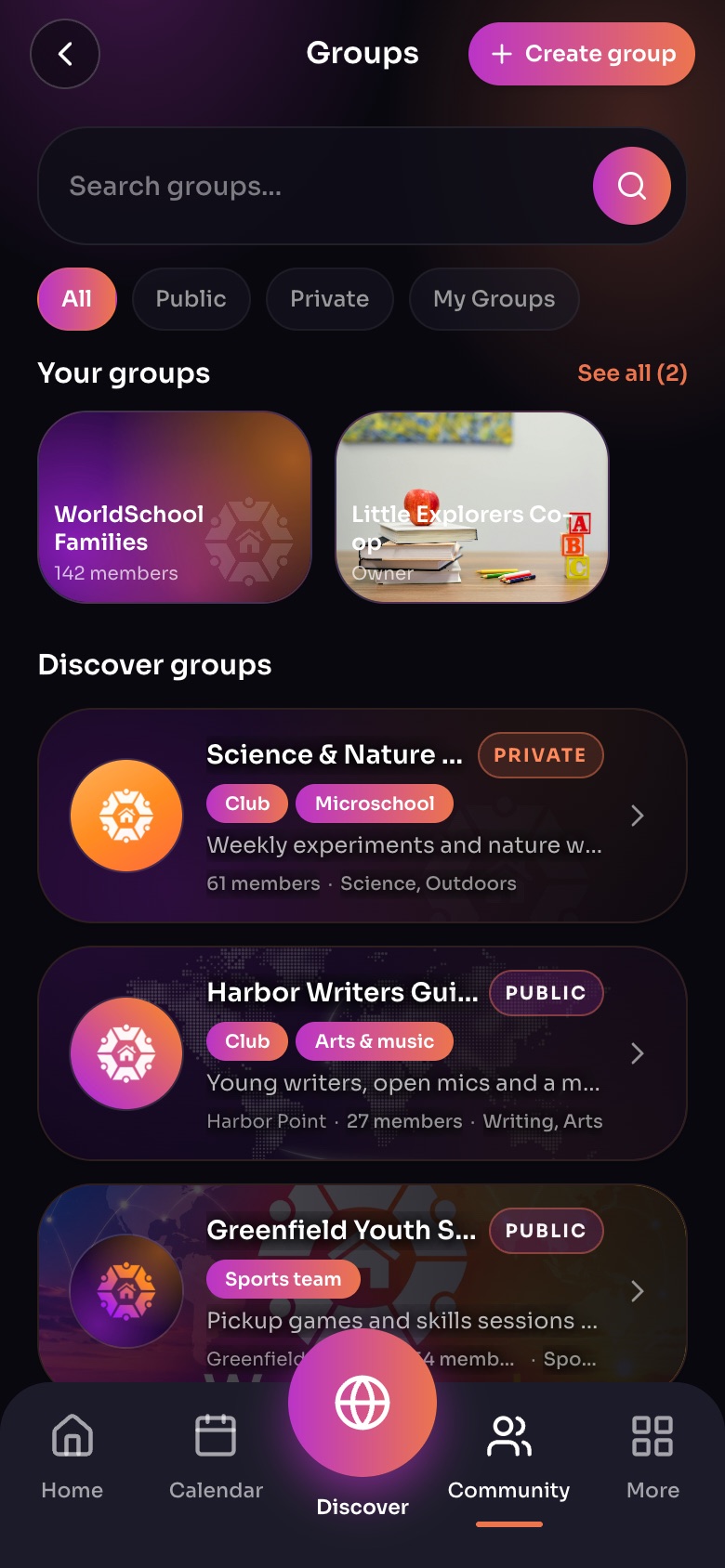
Groups (Community, then Groups)
- Create group
- FiltersAll, Public, Private or only your groups.
- Your groups
- Discover groupsGroups near you to join or follow.
Sample family shown. Your screen shows your own name, Experiences and groups.
Create it
- Open More › Groups, or View/Add Groups on Home, and choose to create a group.
- Name it and choose up to 3 types: Co-op, Microschool, Learning pod, Daycare, Tutoring, Business, Nonprofit, Faith community, Neighborhood circle, Club, Sports team, Arts & music, Travel & worldschooling, Support group, or your own words.
- Write a description and set its primary location.
- Add a cover photo and a group photo.
- Choose its privacy: Public, Private or Secret. See Group privacy.
- Pick an @handle so it has its own link.
- Add house rules and up to 5 join questions. Turn on Answers are required if every new member must answer.
- Create it.
Tip: Tap Let AI set up your group to draft the description, rules and questions from a few sentences.
Member permissions
Choose whether members can post (Allow member posts), invite others (Allow member invites), and whether leaders approve those invites (Admins approve members' invites).
Did this answer your question?
Still need help?
Send the team a request and a person will answer, usually within two working days.