
Share your Experiences and profile
Share links, QR codes and previews that show your cover photo, so families can find and book you.
Share an Experience
Open it and tap share to copy its link or send it. Links show a preview with your title and, if you turned on Use the cover photo in share previews, your event image.
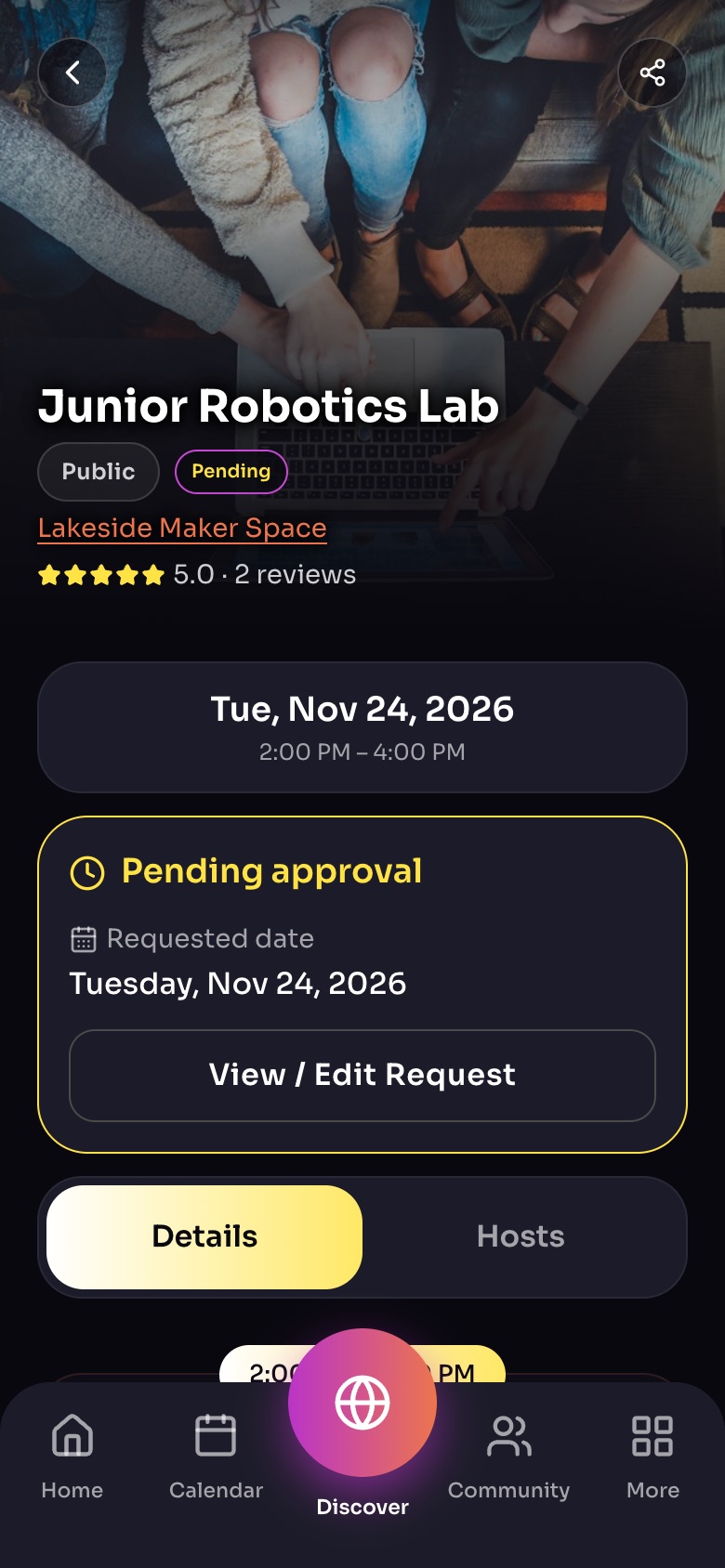
An Experience page after a booking request
- ShareSend the link by text, email or social media.
- Your booking statusPending until the host approves; then Confirmed.
- View / Edit RequestChange dates or guests, or cancel.
- Details / HostsSwitch between the Experience and who hosts it.
Sample family shown. Your screen shows your own name, Experiences and groups.
Share your profile or group
Your @handle link (app.worldschool.org/@yourname) opens your profile. Groups have a share page with a QR code and link.
What people see
Someone without WorldSchool sees a public preview and a way to get the app. A shared link is never an invite code; new families still join with a code.
Note: Private and Secret Experiences are not shown to people outside who they are meant for, even with the link.
Still need help?
Send the team a request and a person will answer, usually within two working days.