
Choose your notifications: push, text and email
Turn push, text and email on or off for each kind of notification.
Open your settings
On iPhone, open More › Settings › Notifications Settings. On the web, open Settings › Notifications.
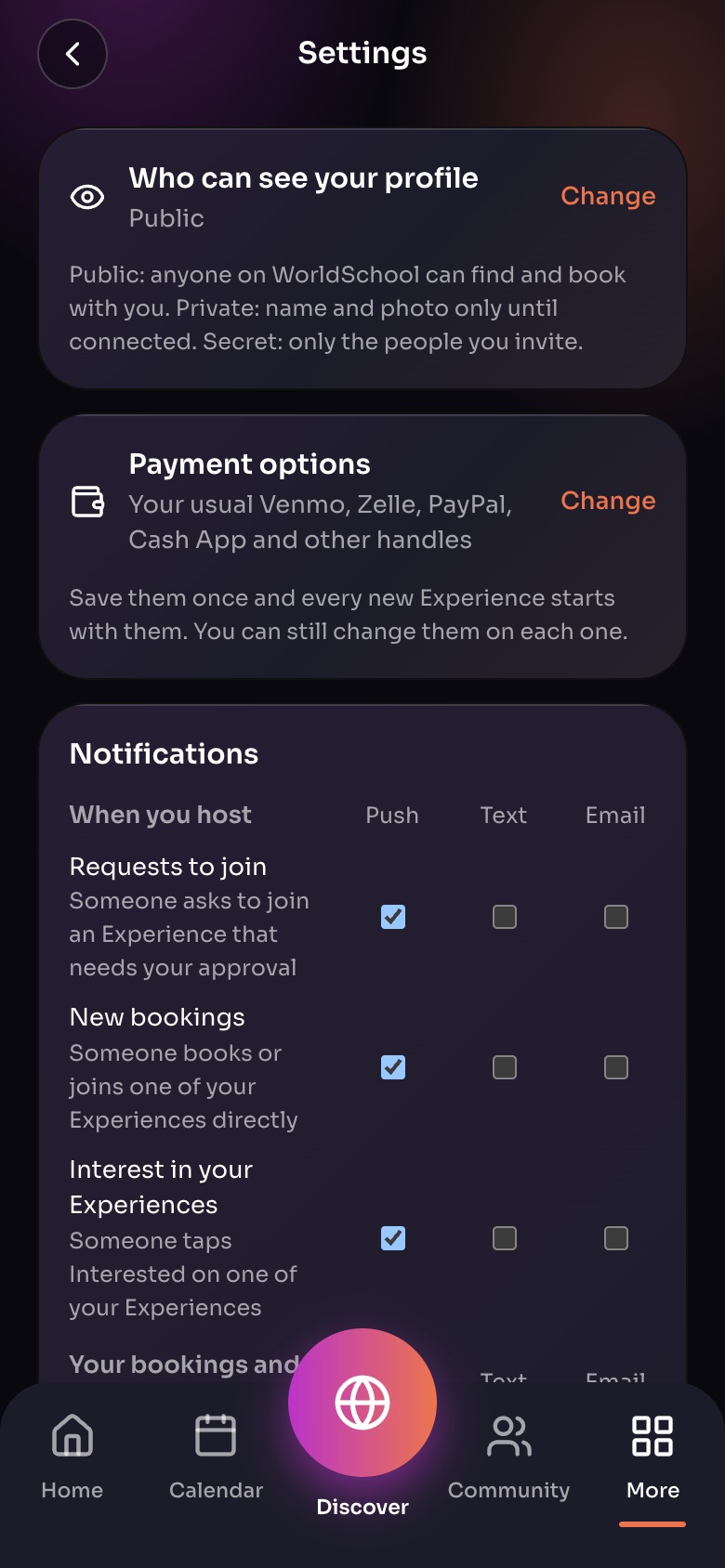
Settings (More, then Settings)
- Who can see your profilePublic, Private or Secret. Tap Change.
- Payment optionsYour Venmo, Zelle, PayPal and other handles, saved once.
- NotificationsPush, text or email for each kind of message.
Sample family shown. Your screen shows your own name, Experiences and groups.
Choose per topic
Each topic has its own Push, Text and Email switches:
- When you host: requests to join, new bookings, interest in your Experiences.
- Your bookings and interests: booking updates, interest list updates, reminders, reviews and feedback.
- People and groups: messages, friend requests, groups, posts and comments, event invitations.
- WorldSchool: news and announcements.
Tip: Mute one busy chat from its own menu instead of turning off all message notifications.
Did this answer your question?
Still need help?
Send the team a request and a person will answer, usually within two working days.